> For the complete documentation index, see [llms.txt](https://docs.flosum.com/llms.txt). Markdown versions of documentation pages are available by appending `.md` to page URLs; this page is available as [Markdown](https://docs.flosum.com/backup-and-archive/restore/how-to-guides/how-to-restore-files.md).
# How to Restore Files
##  Overview
Salesforce files are stored as **ContentVersion** records and linked to standard or custom objects (e.g., Accounts, Contacts, Cases). When a file is deleted from a record, it is essential to restore the associated ContentVersion to recover the file. This article provides an example of the process involved in restoring a deleted file using Backup & Archive. It covers how to identify the correct backup, prepare the restore, and confirm the results.
{% hint style="info" %}
#### Key Concept
To recover a deleted file, restore the **ContentVersion** object. While files may reference other objects, such as ContentDocument or ContentDocumentLink, recovering the **ContentVersion** is usually sufficient.
{% endhint %}
Restoring records with Backup & Archive is a two-step process:
* **Create a Restore Request**: Identify what to restore before making any changes to your org.
* **Run Restoration**: Verify the data to restore, then execute the restoration.
For more background on the restore process and links to detailed instructions, see the following article.
* [Overview of Restore](/backup-and-archive/restore/overview-of-backup-and-archive-restore.md)
***
## Recover a Deleted File from an Account Record
This guide provides instructions for testing the Backup & Archive recovery process for a file deleted in Salesforce. The restoration process consists of two main steps:
1. **Create a Restore Request**: Identify the records to restore before making any changes.
2. **Run Restoration**: Verify the data and execute the restoration.
For a detailed understanding of the restoration process, refer to the provided article.
* [Overview of Restore](/backup-and-archive/restore/overview-of-backup-and-archive-restore.md)
{% hint style="info" %}
#### Tips
* Only the **ContentVersion** object is required to restore file content.
* Restore jobs can optionally include related objects for additional context or validation.
* Always use filters to narrow the scope and reduce processing time.
{% endhint %}
### Prerequisites
To complete this example, ensure you are familiar with the following actions in Backup & Archive:
* Create Composite Backup: [Creating a User-Defined Composite Backup](/backup-and-archive/backup-and-archive/backups/creating-a-user-defined-composite-backup.md)
* Create Restore Job: [Creating a Backup Restore Job (Preparation)](/backup-and-archive/restore/prepare-restore/creating-a-backup-restore-job-preparation.md)
* Execute Restore Job: [#execute-the-restore](#execute-the-restore "mention")
### Simulate Accidental File Deletion
To restore a file with Backup & Archive, you must simulate a file being accidentally deleted. The following is an example of how to create this situation. The steps below assume you know the basics of creating a composite backup. For more detailed guidance, see the following article.
* [Creating a User-Defined Composite Backup](/backup-and-archive/backup-and-archive/backups/creating-a-user-defined-composite-backup.md)
{% stepper %}
{% step %}
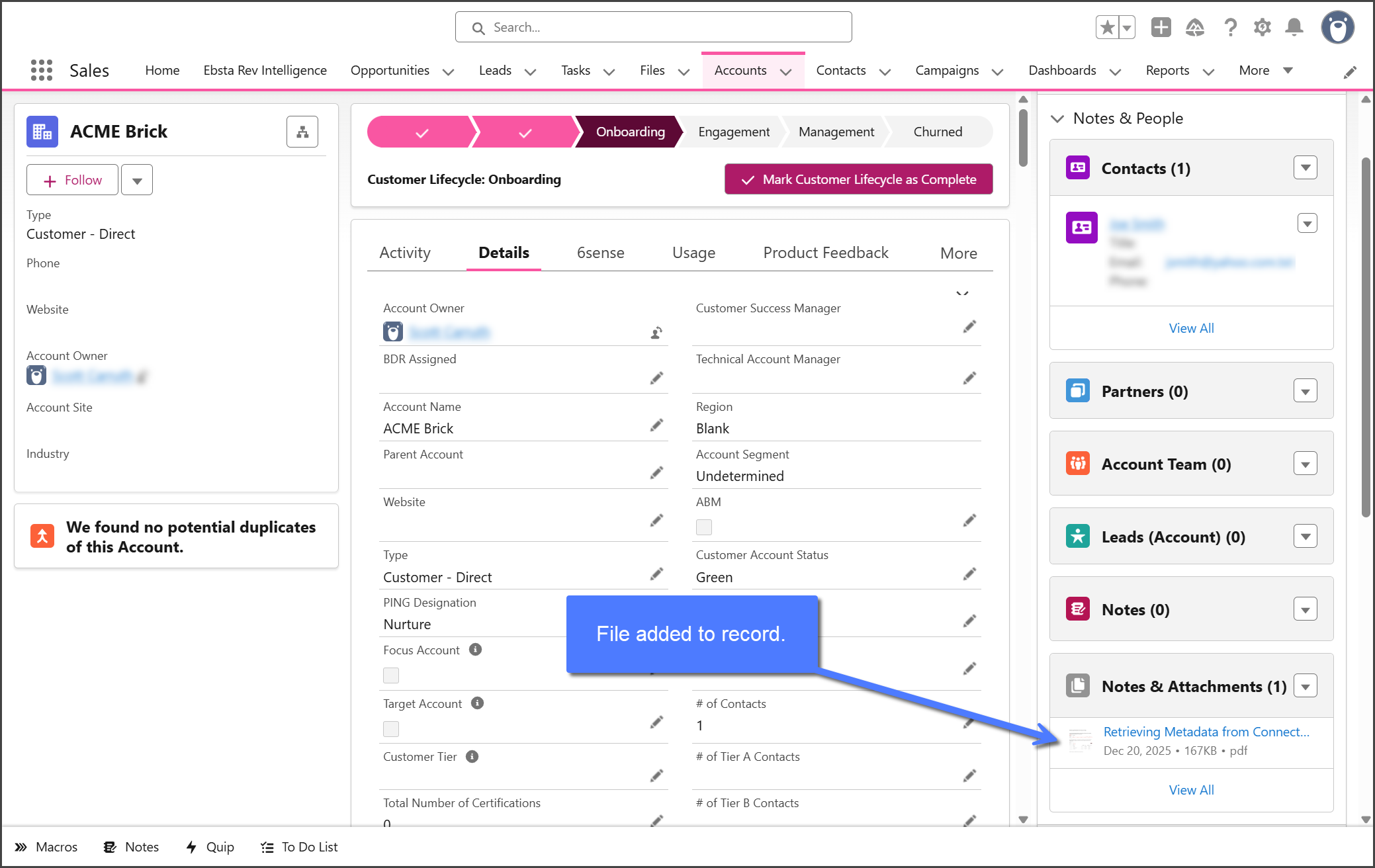
#### Add a File to a Record
* In your Salesforce org.
* Navigate to an Account record (e.g., **ACME Brick**).
* Upload a file (e.g., PDF) under **Notes & Attachments**.
{% endstep %}
{% step %}
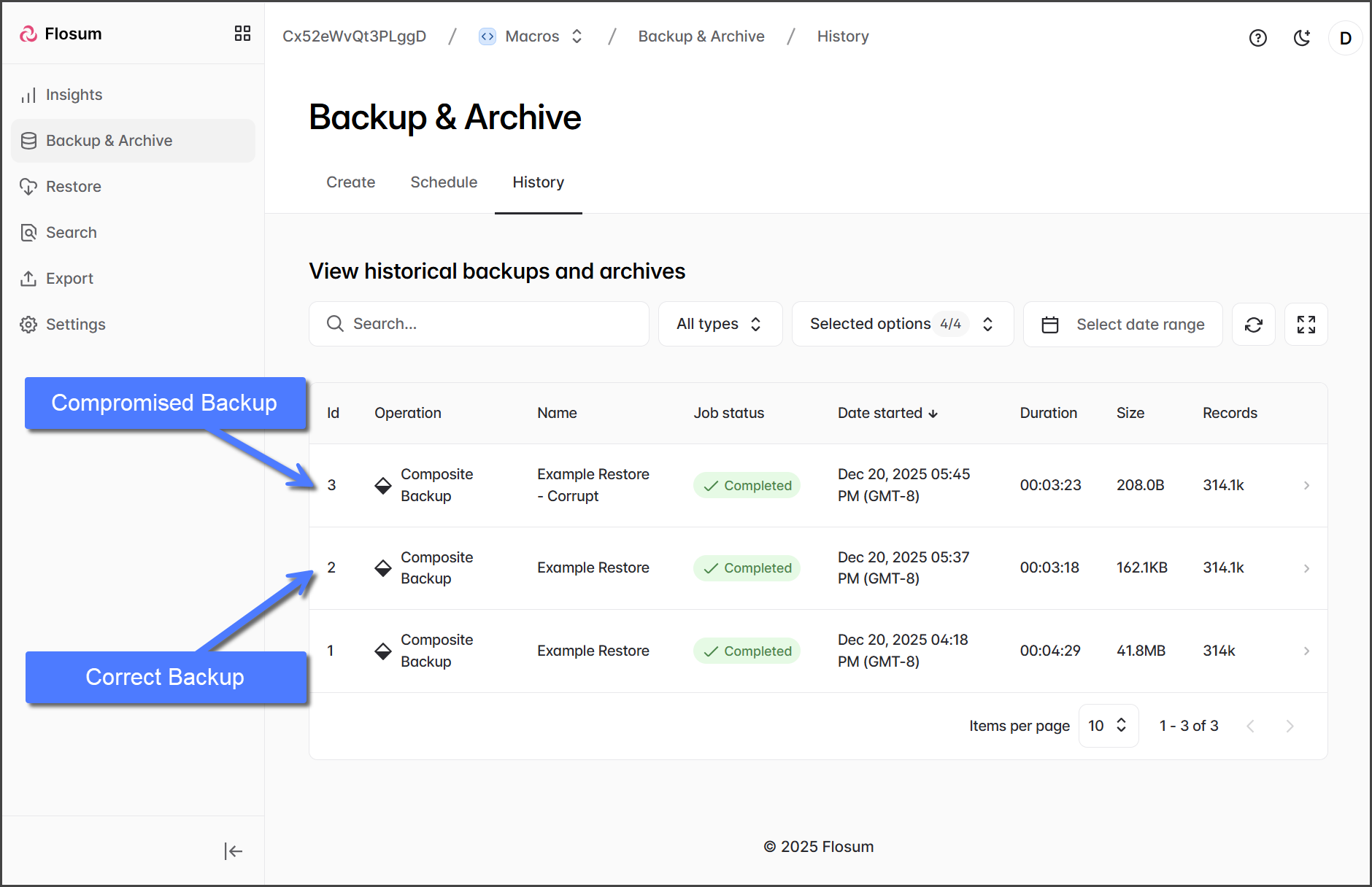
#### Run a Backup
* In **Backup & Archive.**
* Run a composite backup job.
* This becomes your **Correct Backup**, a backup version containing the file.
{% endstep %}
{% step %}
#### Delete the File
* In your Salesforce org.
* Manually delete the file from the Account record.
{% endstep %}
{% step %}
#### Run a Second Backup
* In **Backup & Archive.**
* Run another composite backup job.
* This becomes your **Compromised Backup**, which no longer includes the file.
{% endstep %}
{% endstepper %}
### Prepare the Restore
With both backups ready, you can now set up the Restore job. The steps below assume you know the basics of creating a restore job. For more detailed guidance, see the following article.
* [Creating a Backup Restore Job (Preparation)](/backup-and-archive/restore/prepare-restore/creating-a-backup-restore-job-preparation.md)
{% stepper %}
{% step %}
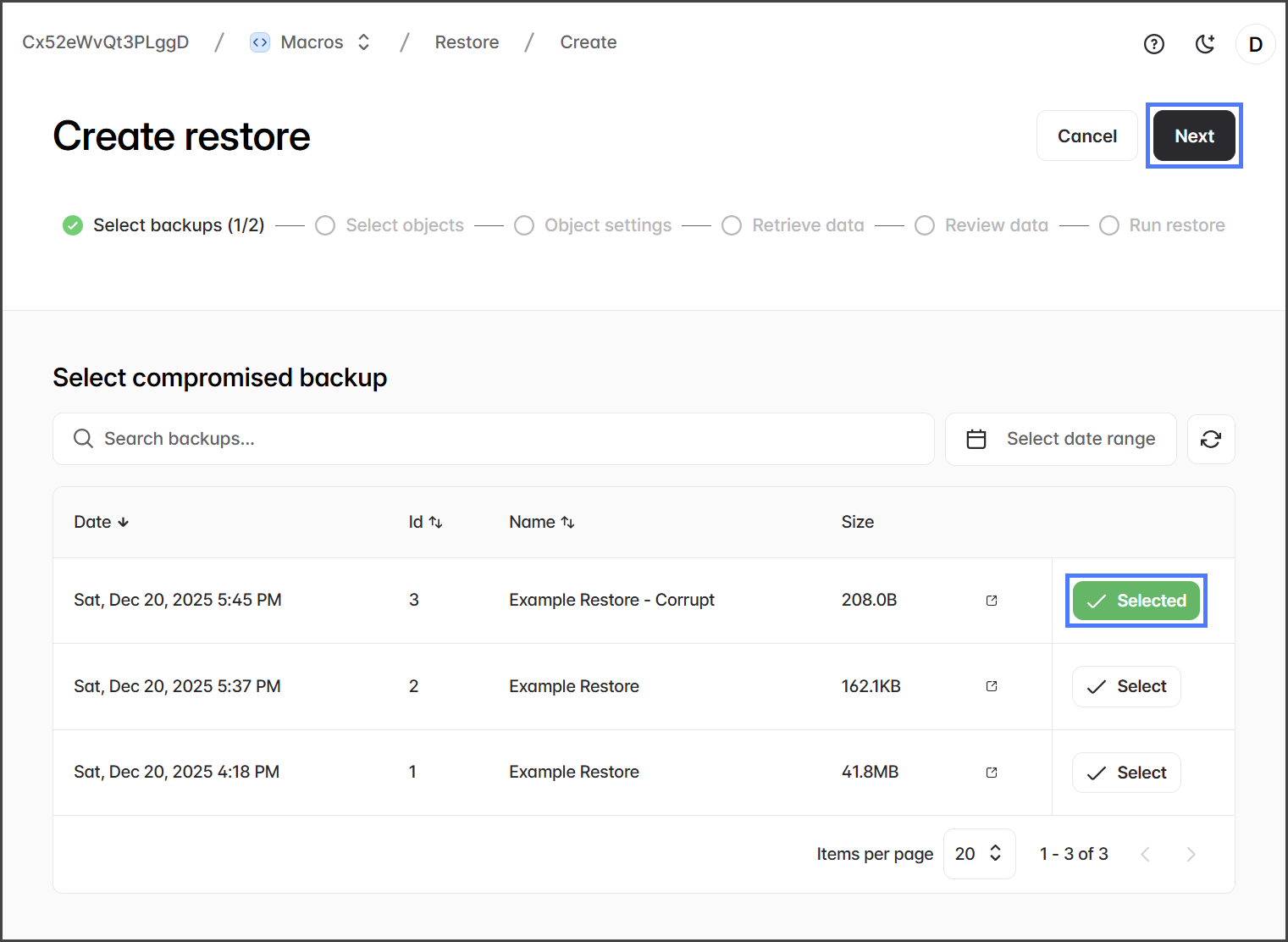
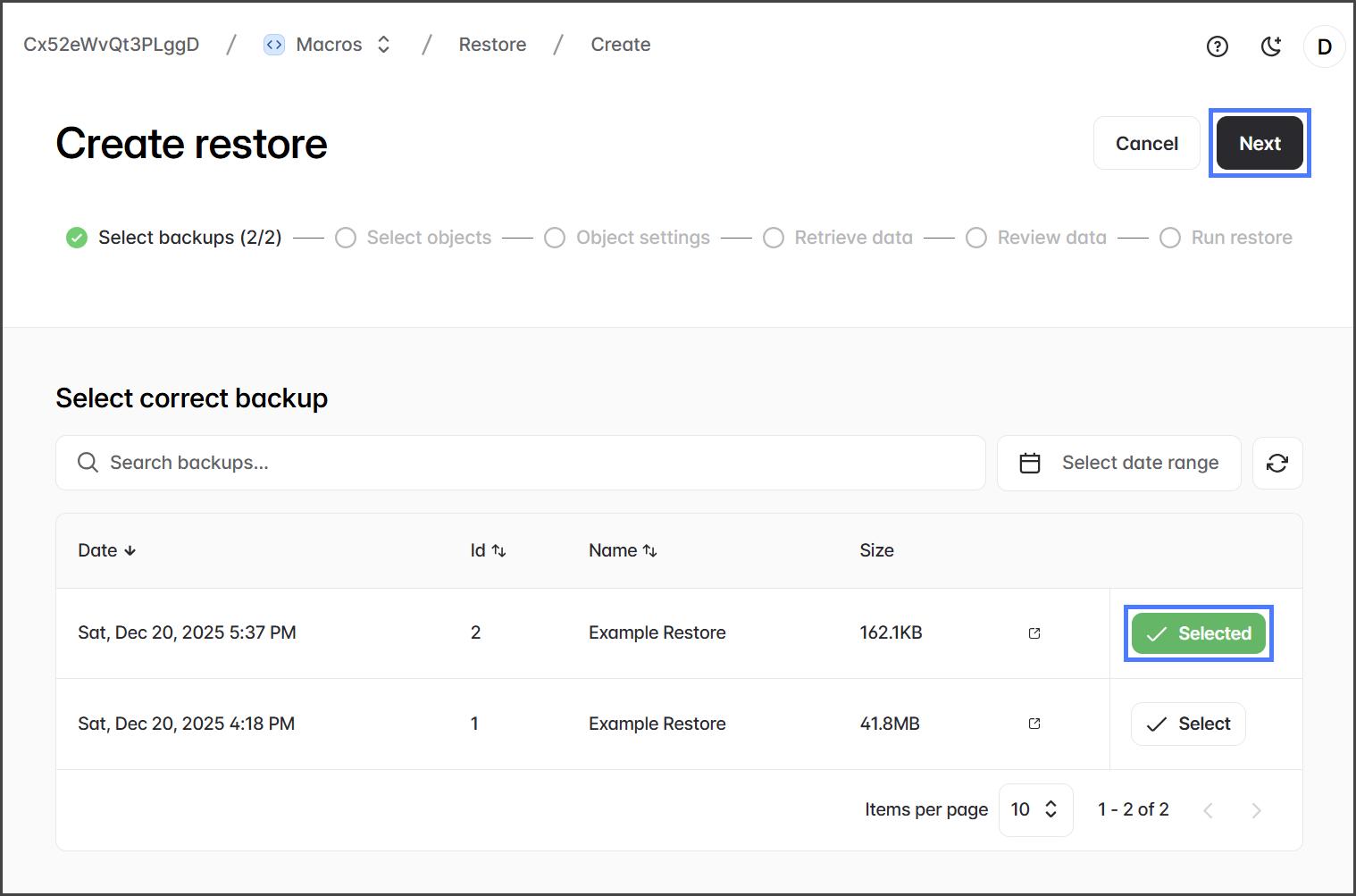
#### Create Backup Restore Job and Select Backups
* In **Backup & Archive**, click **Restore** from the left sidebar.
* Click **Backup** to create a backup restore job.
* Select the **Compromised Backup**, and click **Next**.
* Select the **Correct Backup**, and click **Next**.
{% endstep %}
{% step %}
#### Choose Objects to Restore
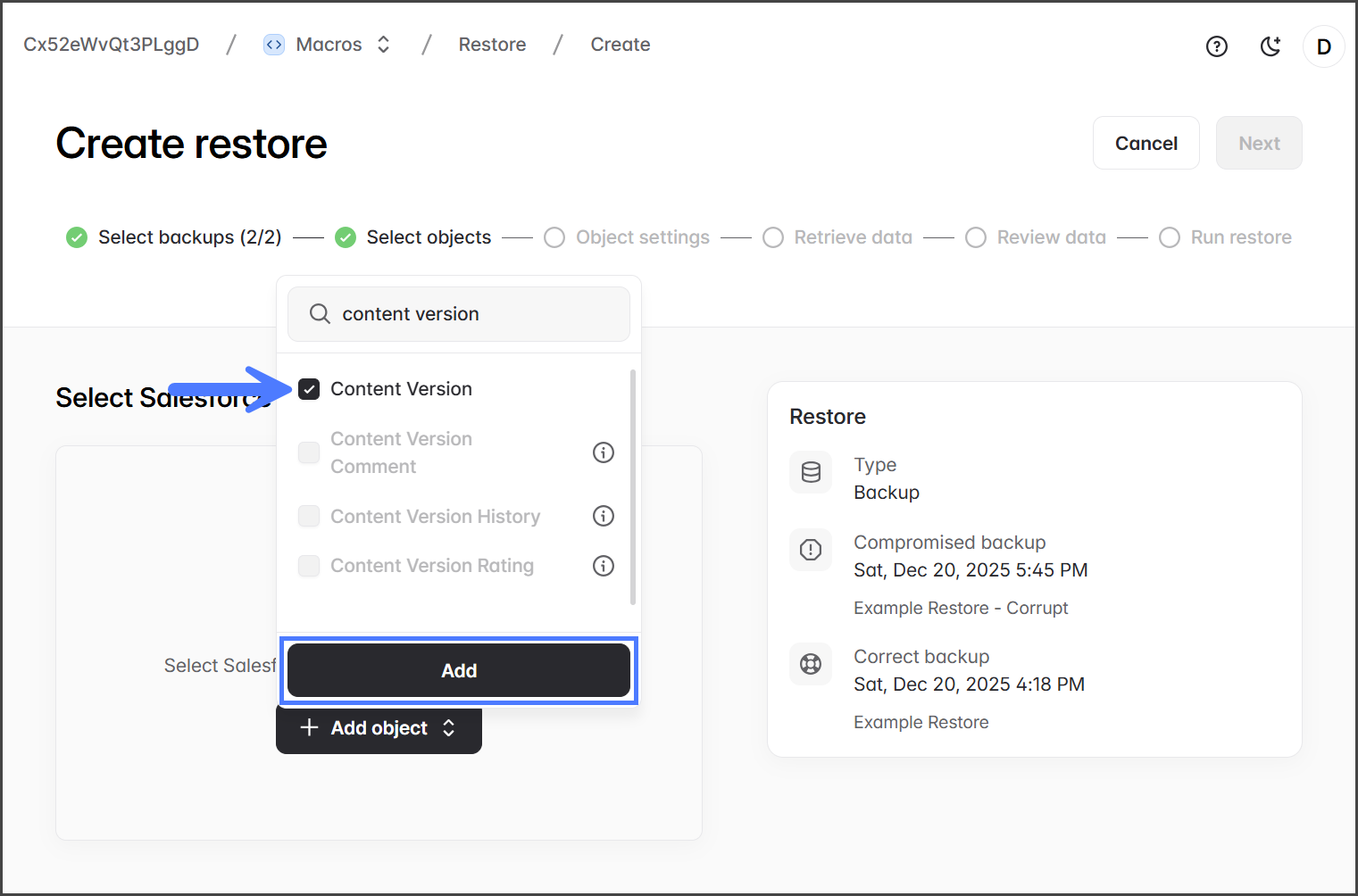
* Click **Add Objects** to select objects to restore.
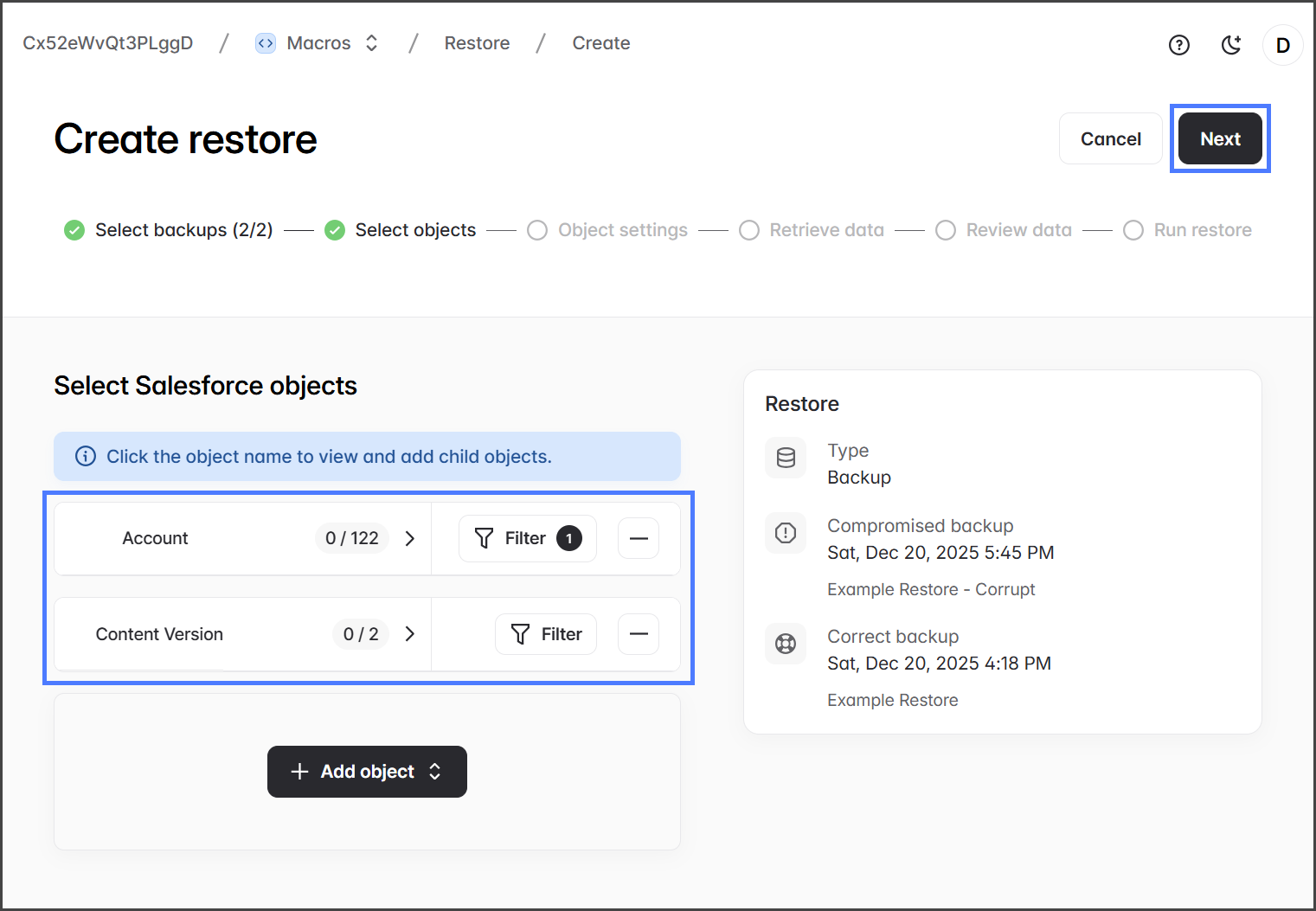
* (Recommended) Check the **Account** object to allow for filtering by account name.
* (Required) Check the **Content Version** object to include the object type in which the file is stored.
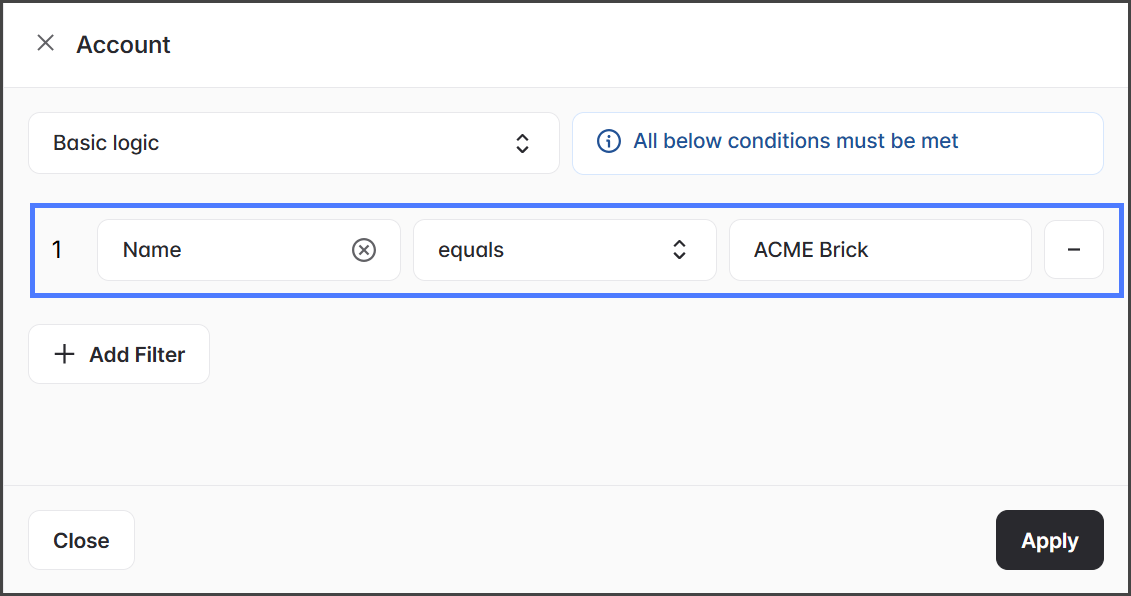
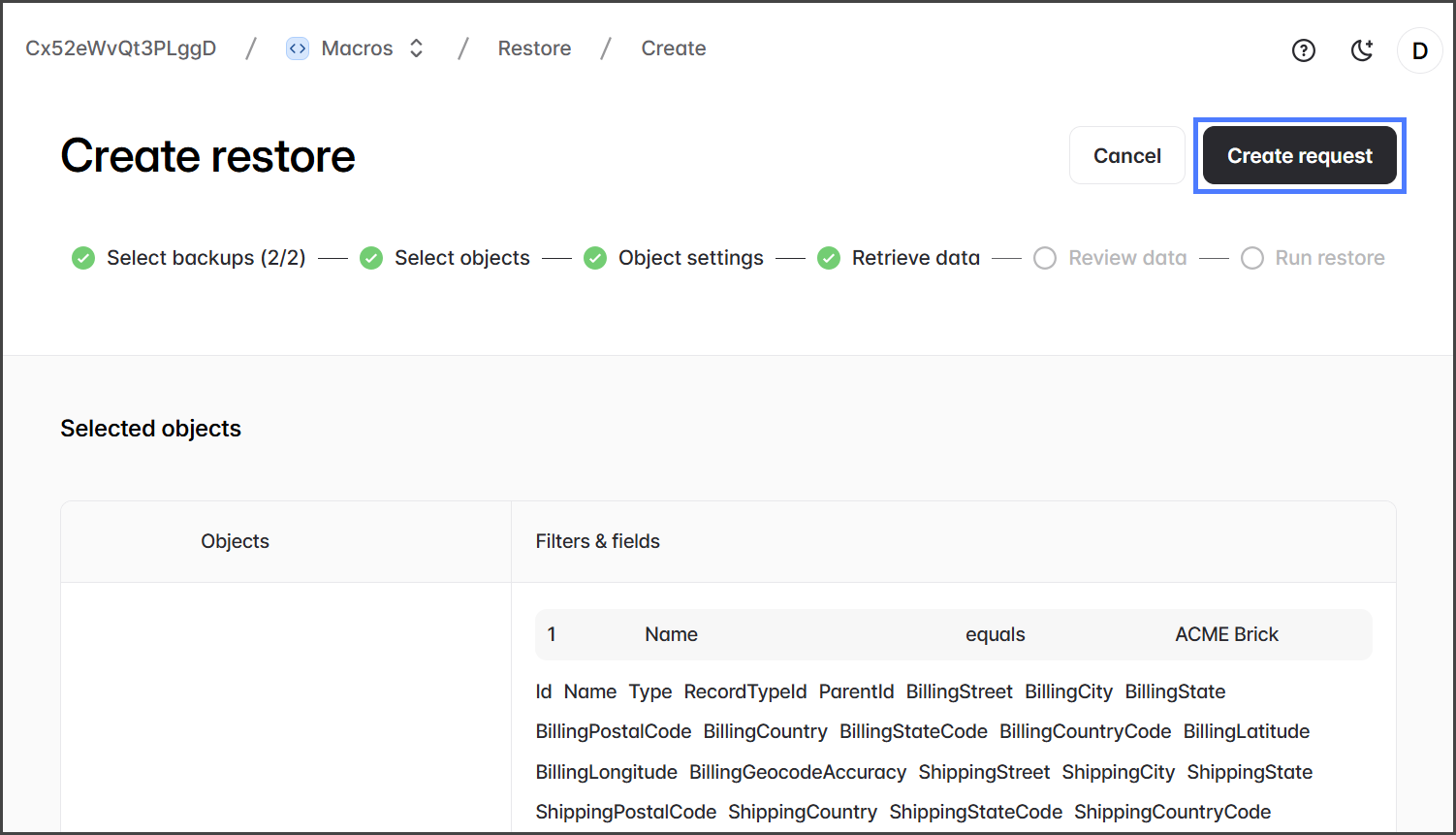
* (Recommended) Apply **Filters**.
* For example, to filter for just the account record that the file was deleted from, create a filter for the **Account** object to filter for `Name equals ACME Brick`
* Click **Next** once you are done adding objects and filters.
{% endstep %}
{% step %}
#### Object Settings and Create Request
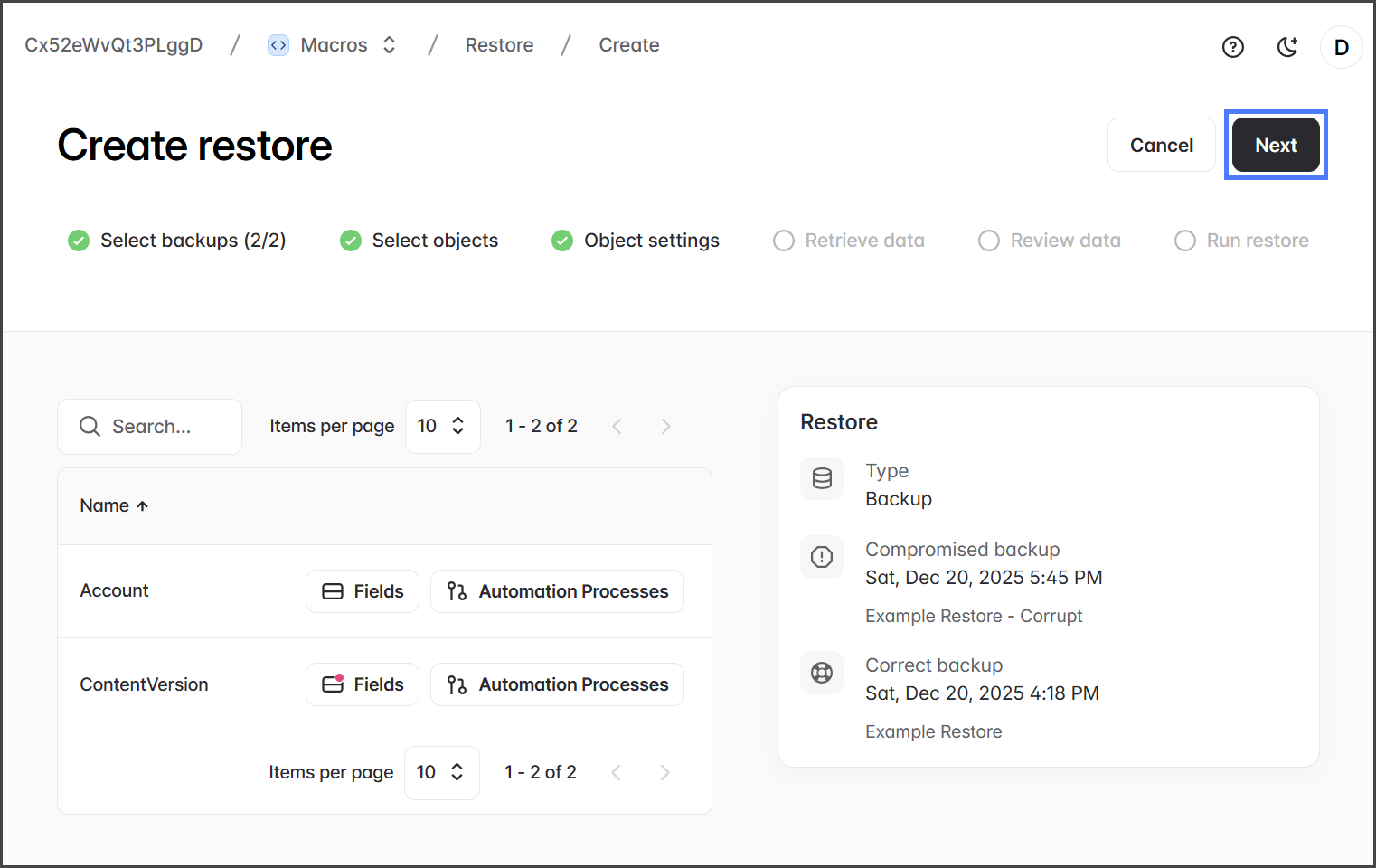
* (Optional) Automation Settings: Disable workflow rules, triggers, and flows if needed.
* Click **Next** to go to the Retrieve Data step.
* Review and click **Create Request** to start the Restore Request job.
{% endstep %}
{% endstepper %}
### Execute the Restore
Now that the restore request has been created, the next step is to restore the file. The steps below assume you know the basics of executing a restore job. For more detailed guidance, see the following article.
* [Running a Restore Job (Execution)](/backup-and-archive/restore/execute-restore/running-a-restore-job-execution.md)
{% stepper %}
{% step %}
#### Wait for the Restore Request
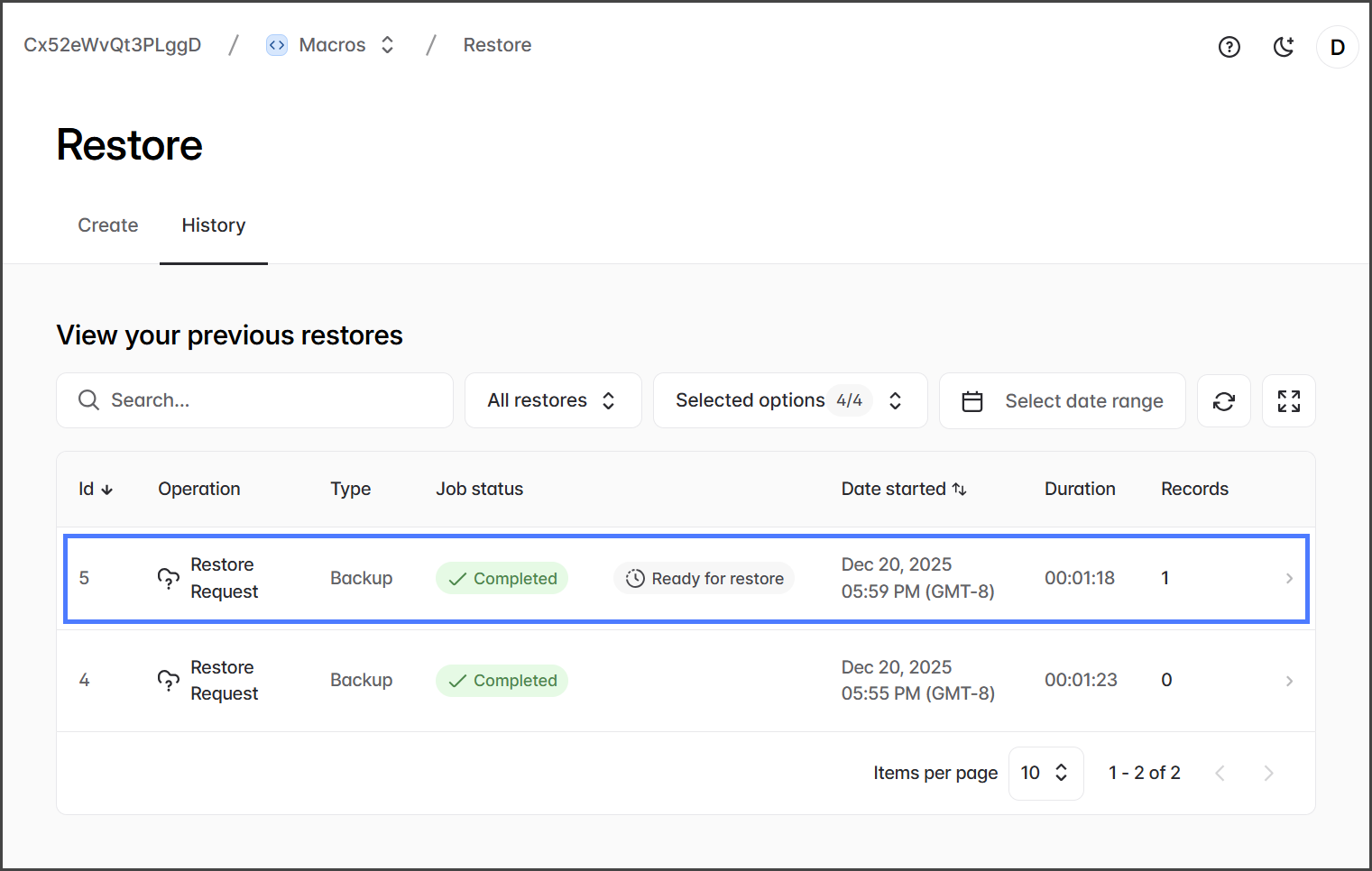
* Check the job status on the **Restore > History** page.
* Wait for the **Restore Request** job you created to be **Completed**.
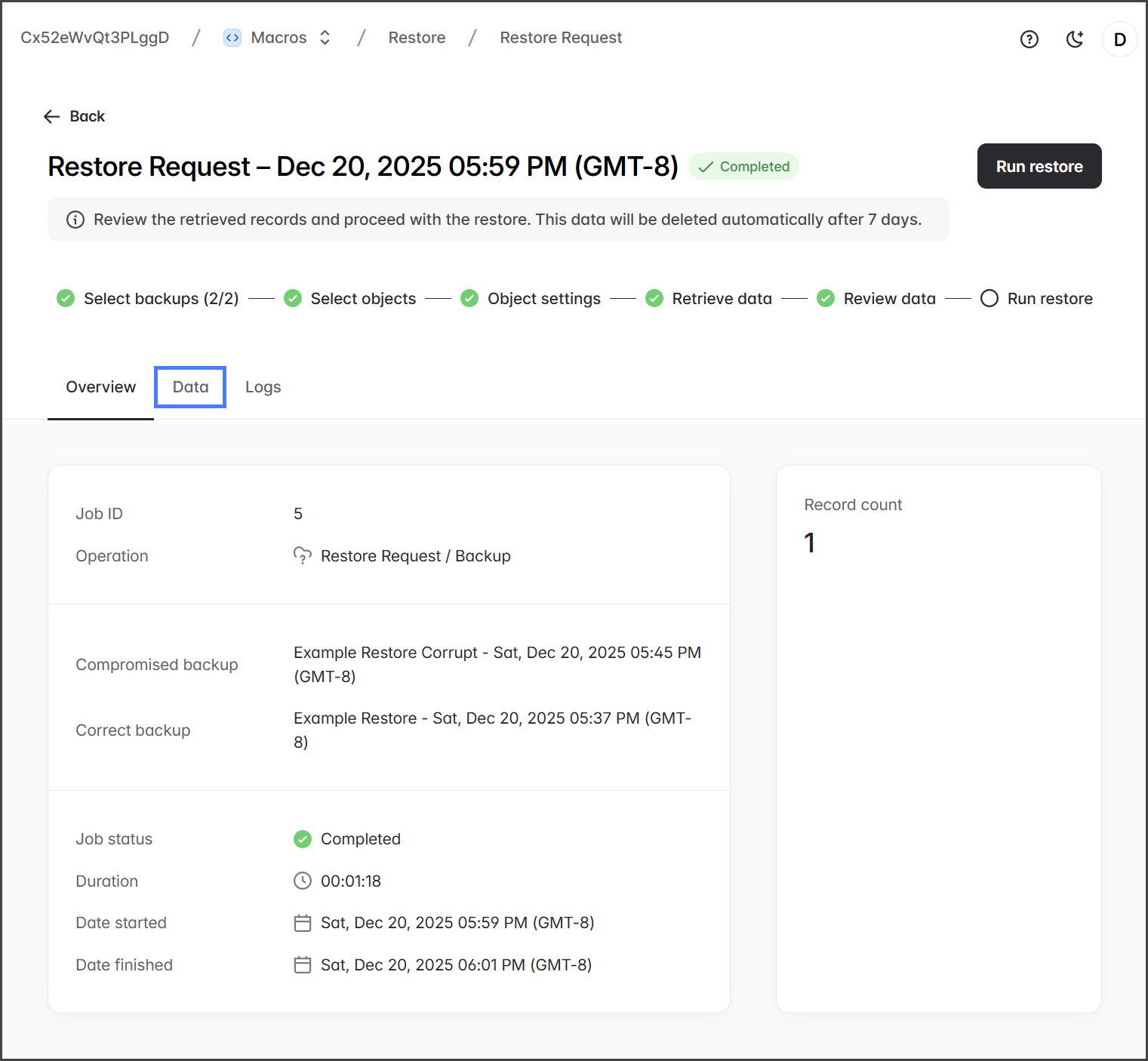
* Click the job.
{% endstep %}
{% step %}
#### Verify Restore Data
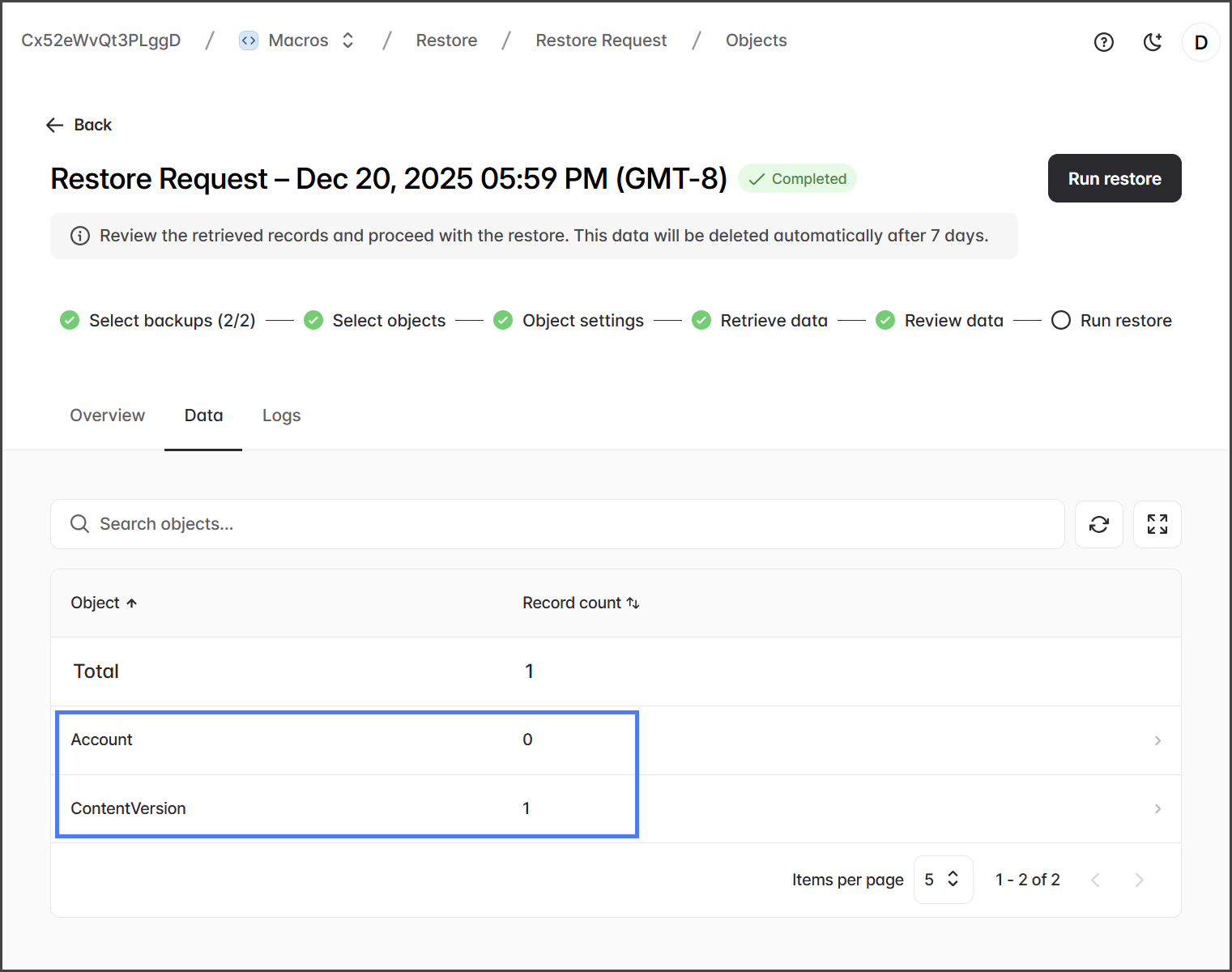
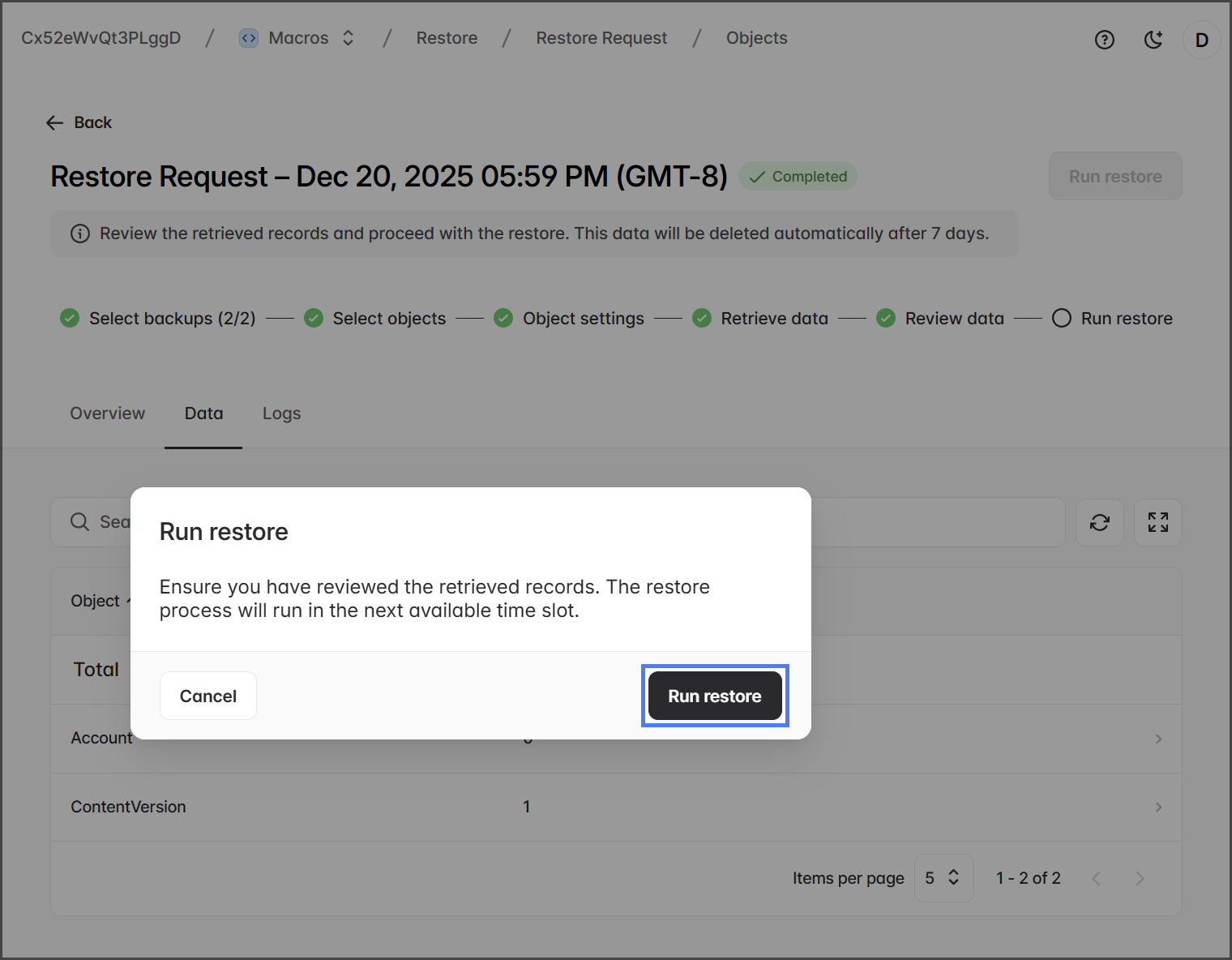
When the restore request is successfully created, a single **ContentVersion** record will be identified for restoration. This **ContentVersion** record contains the deleted file. Since the **Account** object was included for filtering purposes and no changes have been made to Accounts, no records should appear as changed.
* Click the **Data** tab.
* Confirm the following data to be restored:
| Object | Record Count |
| -------------- | ------------ |
| Account | 0 |
| ContentVersion | 1 |
{% hint style="info" %}
The **ContentVersion** object has the file to restore. You can click the **ContentVersion** object to verify further the file details to be restored.
{% endhint %}
{% endstep %}
{% step %}
#### Run Restore
* Click **Run restore** to start restoring the deleted file.
{% endstep %}
{% step %}
### Verify File Restored
* Log in to your Salesforce org.
* Navigate to the **ACME Brick** Account record.
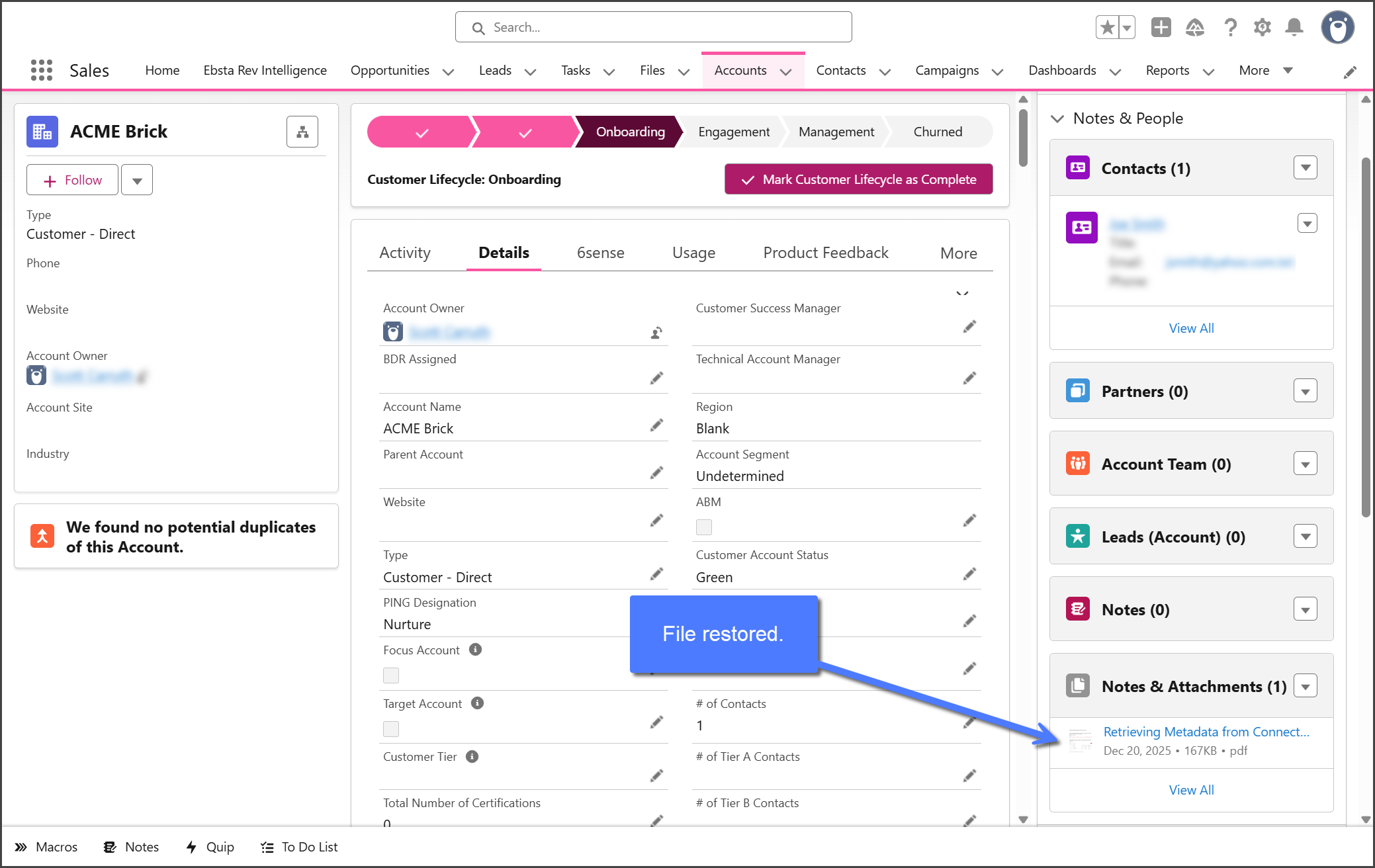
* Confirm the file is restored under **Notes & Attachments**.
{% endstep %}
{% endstepper %}
---
# Agent Instructions
This documentation is published with GitBook. GitBook is the documentation platform designed so that both humans and AI agents can read, navigate, and reason over technical content effectively. Learn more at gitbook.com.
## Querying This Documentation
If you need additional information that is not directly available in this page, you can query the documentation by asking a question.
Perform an HTTP GET request on the following URL with the `ask` and `goal` query parameters:
```
GET https://docs.flosum.com/backup-and-archive/restore/how-to-guides/how-to-restore-files.md?ask=&goal=
```
`ask` is the immediate question: it should be specific, self-contained, and written in natural language.
`goal` is what the user is ultimately trying to achieve, the reason they need the answer. Sharing it helps GitBook give you a better, more relevant answer. A goal is most helpful when it describes the outcome the user wants rather than restating the question. For example, with `ask=how do I create an API token`, a goal like `automate deployments from our CI pipeline` lets GitBook tailor the answer to that use case.
The response will contain a direct answer to the question and relevant excerpts and sources from the documentation.
Use this mechanism when the answer is not explicitly present in the current page, you need clarification or additional context, or you want to retrieve related documentation sections.