> For the complete documentation index, see [llms.txt](https://docs.flosum.com/llms.txt). Markdown versions of documentation pages are available by appending `.md` to page URLs; this page is available as [Markdown](https://docs.flosum.com/backup-and-archive/restore/prepare-restore/creating-an-archive-restore-job-preparation.md).
# Creating an Archive Restore Job (Preparation)
{% hint style="success" %}
#### Required User Credentials
\[**Flosum User**] - **Backup & Archive** license with **Restore** permissions
{% endhint %}
## Overview
This article covers the first stage of restoring data from an archive in the Flosum Backup & Archive app. You'll create a Restore Request job to identify records that meet your criteria, allowing you to verify what will be restored before execution.
{% hint style="info" %}
With the Archive process, records are backed up in Flosum Backup & Archive and then deleted from Salesforce. The Archive Restore process lets you restore the archived records to your Salesforce org.
{% endhint %}
If you want to restore backup data or backup metadata, see the corresponding article for the specific instructions.
* [Creating a Backup Restore Job (Preparation)](/backup-and-archive/restore/prepare-restore/creating-a-backup-restore-job-preparation.md)
* [Creating and Running a Backup Metadata Restore Job](/backup-and-archive/restore/execute-restore/creating-a-backup-metadata-restore-job-preparation.md)
After the Restore Request completes, you'll see how many records are eligible for restoration. From there, you can run a Restore job to restore the records to your Salesforce org. See the following article for instructions:
* [Running a Restore Job (Execution)](/backup-and-archive/restore/execute-restore/running-a-restore-job-execution.md)
## Create Archive Restore
{% stepper %}
{% step %}
### Select Restore Type
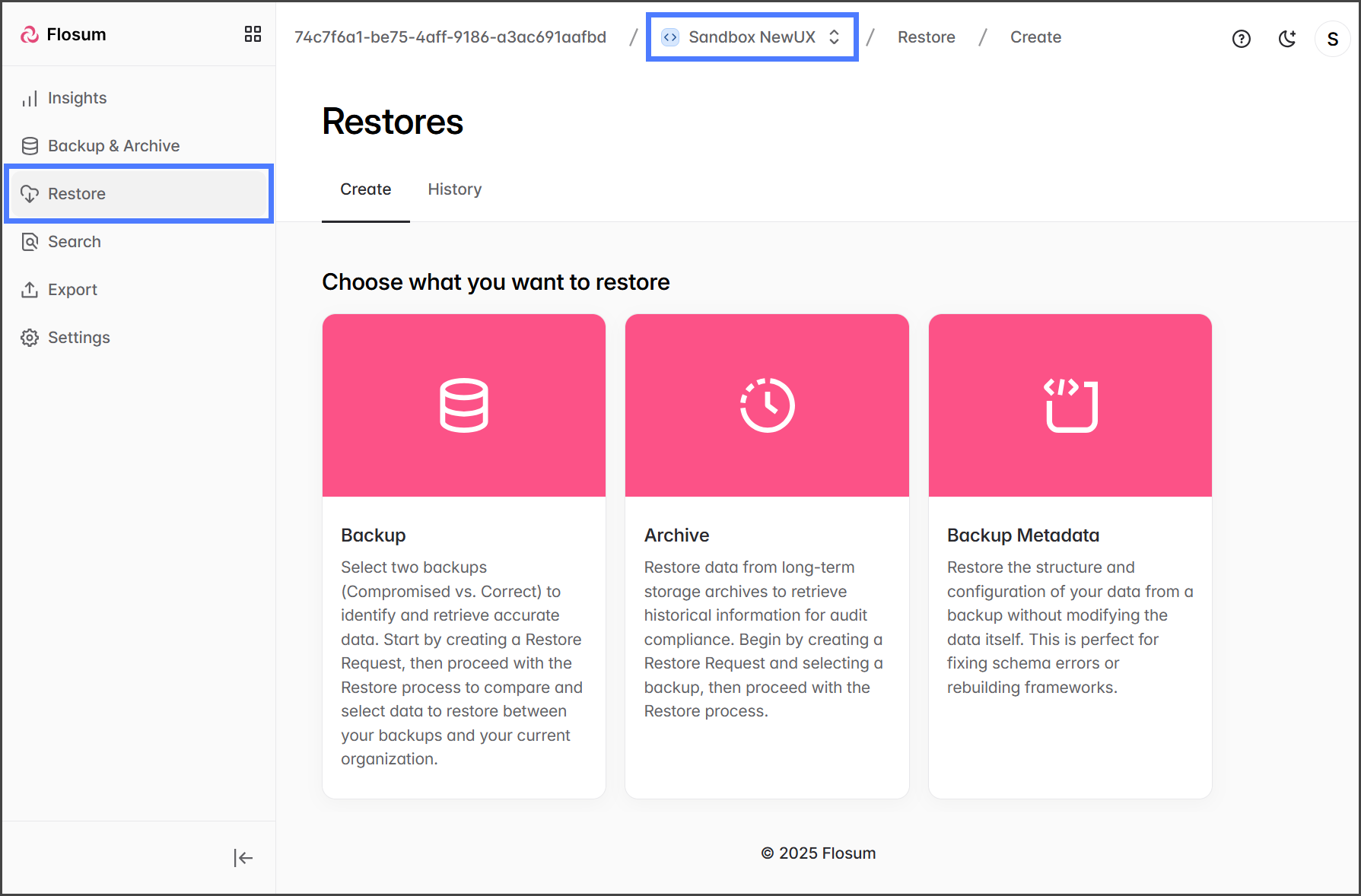
1. Click **Restore** from the sidebar menu.
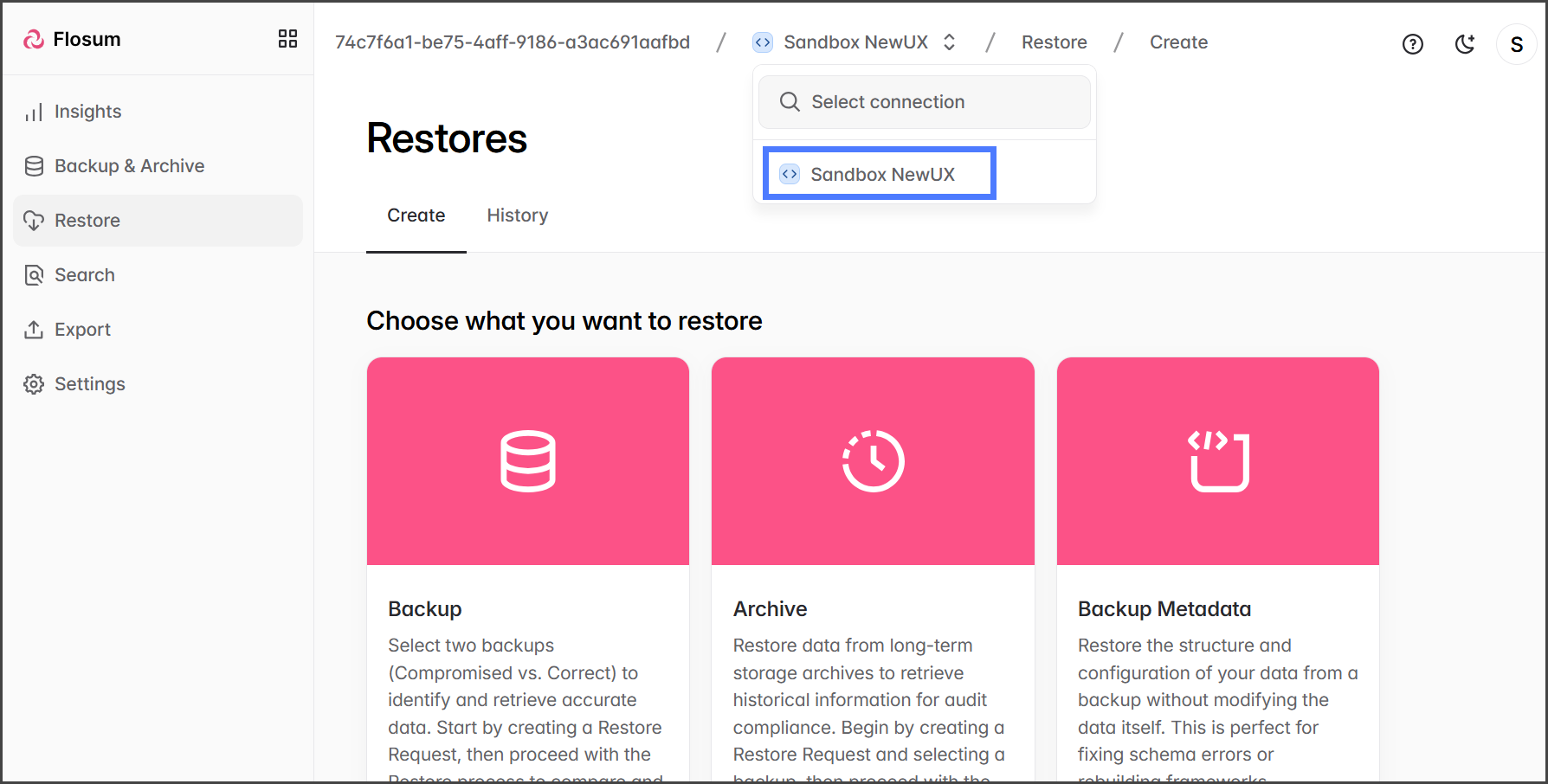
2. Click the **Organization Switcher** from the breadcrumb path.
3. Select the organization you wish to restore.
4. Click **Archive**.
{% endstep %}
{% step %}
### Select Archive to Restore
1. Click **Select** for the Archive from which you wish to restore records.
2. Click **Next**.
{% endstep %}
{% step %}
### Select Objects to Restore
In this section, you select the objects you want to restore, their related child objects, filter on what records you want to restore, and which fields you want to retrieve.
1. Click the **Add Object** menu to choose which Salesforce objects to restore.
2. Search or browse for objects from the menu.
{% hint style="info" %}
When searching for an object, enter the **Salesforce Object Label**, not the Salesforce API Name. For example, enter **Content Version**, not ContentVersion.
{% endhint %}
3. Check the objects you want to add.
4. Click **Add** to add all of the selected objects.
5. When an object is added, you can add any available child objects to restore.
{% hint style="info" %}
To the right of the object’s name is a count of **Added/Available** child objects. In the screenshot below, the **DealsImported** object has **1** child object, and **0** have been added.
{% endhint %}
6. Click an object to open the **Add child objects** dialog.
7. Click the **+ Add** button next to each of the child objects to add.
8. The **Caution** icon indicates that a child object depends on its parent object (a cascading delete relationship).
{% hint style="info" %}
The **Caution** icon is designed to help you identify any child objects that may need to be restored along with the parent object. For example, if an Account record is archived, all records with a cascading delete relationship will also be archived. To successfully restore the Account record and all of its archived child records, you must select the deleted child records as well. The **Caution** icon helps you identify which objects should be included in the restore process.
{% endhint %}
9. Once you have added all the objects, click **Apply** to save the changes.
{% endstep %}
{% step %}
### (Optional) Add Filters to Objects
1. Click **Filter** to add a filter to the object.
2. Click **Add Filter** in the filter dialog to add a filter criteria.
3. The screenshot below shows an example filter.
4. Click **Apply** to save the filter.
5. Once all the objects are selected and filtered, click **Next**.
{% endstep %}
{% step %}
### Configure Object Settings
Object Settings lets you select the fields to retrieve and the automation processes to suspend during the restore.
1. Click the **Fields** button for an object to select the fields that will be restored for that object. This will open the **Select fields for Object** dialog.
2. The **Select fields for Object** dialog contains two lists of fields. The right list shows all fields selected for restoring the object, while the left list shows the fields that are not selected. You can transfer fields between lists by selecting a field and clicking the arrows between them. Fields that are grey cannot be moved to the other list.
3. Click **Save** after selecting the desired fields.
4. Click the **Automation Processes** button for an object to select the processes to suspend during the restore. This will open the **Disable automation processes for Object** dialog.
5. Check the checkboxes for any of the processes you want to suspend during the restore.
6. Click **Save**.
7. Once all the object settings are complete, click **Next**.
{% endstep %}
{% step %}
### Finish Restore Job Setup
1. Review the restore request to verify that the correct backups for **Compromised** and **Correct** are selected and that the proper objects, filters, and fields are added.
2. Click **Create Request** to initiate the restore preparation job.
{% hint style="info" %}
No data will be restored to Salesforce at this time. You must review the restored data and execute the restore job before the data is restored to Salesforce.
{% endhint %}
3. After starting the restore request job, you will be taken to the **Restore > History** tab.
4. The table shows the status of the Restore Request job.
{% endstep %}
{% endstepper %}
---
# Agent Instructions
This documentation is published with GitBook. GitBook is the documentation platform designed so that both humans and AI agents can read, navigate, and reason over technical content effectively. Learn more at gitbook.com.
## Querying This Documentation
If you need additional information that is not directly available in this page, you can query the documentation by asking a question.
Perform an HTTP GET request on the following URL with the `ask` and `goal` query parameters:
```
GET https://docs.flosum.com/backup-and-archive/restore/prepare-restore/creating-an-archive-restore-job-preparation.md?ask=&goal=
```
`ask` is the immediate question: it should be specific, self-contained, and written in natural language.
`goal` is what the user is ultimately trying to achieve, the reason they need the answer. Sharing it helps GitBook give you a better, more relevant answer. A goal is most helpful when it describes the outcome the user wants rather than restating the question. For example, with `ask=how do I create an API token`, a goal like `automate deployments from our CI pipeline` lets GitBook tailor the answer to that use case.
The response will contain a direct answer to the question and relevant excerpts and sources from the documentation.
Use this mechanism when the answer is not explicitly present in the current page, you need clarification or additional context, or you want to retrieve related documentation sections.